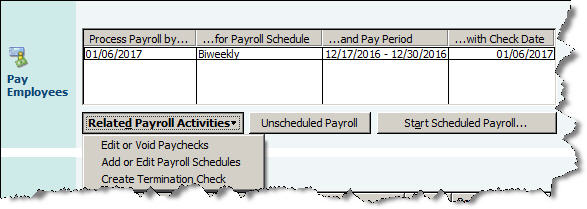
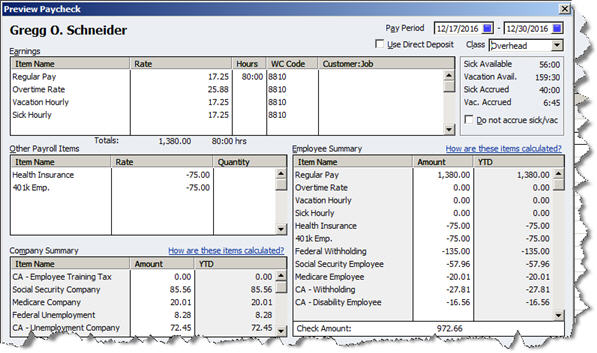
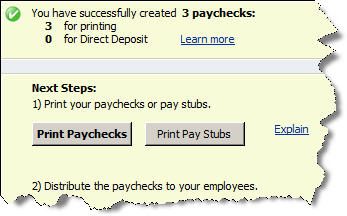
Figure 3: Once you’ve previewed and approved a payroll, you can simply click to print any paper checks and pay stubs.
Check the box at the bottom of this window next to Do not advance the dates of this payroll schedule in the Payroll Center if you still have employees to process for this run. If the box isn’t checked, QuickBooks will change the dates in the Pay Employees window to reflect your next pay period.
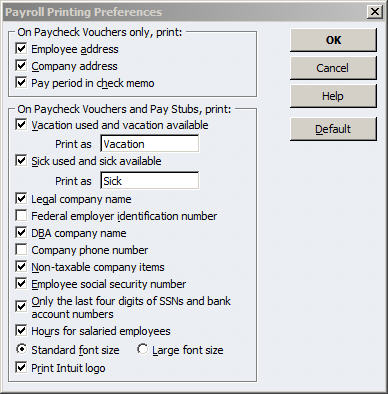
When you select Print Paychecks or Print Pay Stubs, the selection window opens. You can toggle among views of Paychecks, Direct Deposit or Both. Select the ones you want to dispatch and click Print or E-Mail. You’ll have the option to reprint any checks if you need to; otherwise, click OK.
Figure 4: Click Preferences in the print selection window to customize paycheck vouchers and pay stubs.
Sounds simple, and it is — as long as your setup was error-free. As you well know, you can’t make mistakes running payroll or you’ll initiate a whole series of incorrect numbers, making employees, benefits providers and government agencies unhappy.
So do not proceed if something doesn’t look right; QuickBooks always gives you an out. And let us know how we can help with setup, taxes or payroll runs — or anything in between.