- Choose Lists, and then Chart of Accounts (or press Ctrl-A).
- Click the Account button, and then choose New (or press Ctrl-N).
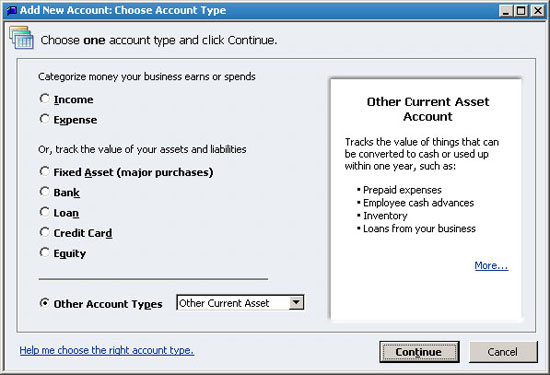
- As shown in Figure 1, choose Other Account Type, Other Current Asset, and then click Continue.
- Assign an Account Name such as Contributions from Owner, (and account number if applicable). If necessary, click Subaccount Of, and specify the Deposits account. Click Save and Close to save the new account.
Tips for QuickBooks Users
Recording Infrequent Transactions in QuickBooks
Day-to-day transactions like receiving payments from customers or paying vendors occur so frequently that most QuickBooks users do them automatically. However, from time to time you may encounter an infrequent transaction that will stop you in your tracks. In this article we'll discuss several common tricky transactions and offer advice on how to handle them.
Security Deposits
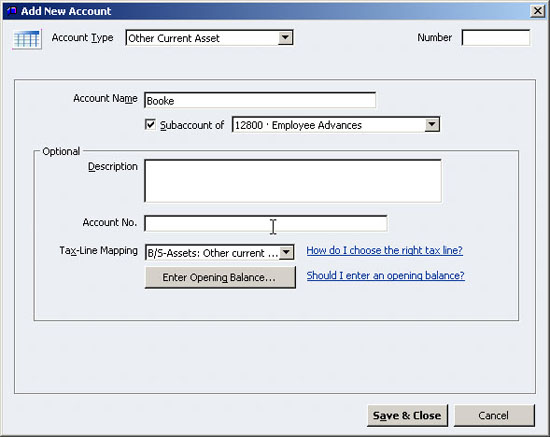
Security deposits, such as for a rental space or to a utility company, require special tracking so that you can be sure to get the money back later. It's best to maintain a separate account for each security deposit so that you can track each individually. If you have numerous security deposits, consider creating individual subaccounts for each deposit:
An easy way to manage security deposits is to post them to a new Other Current Asset account.
Refunds from utility companies, insurance companies, or other sources
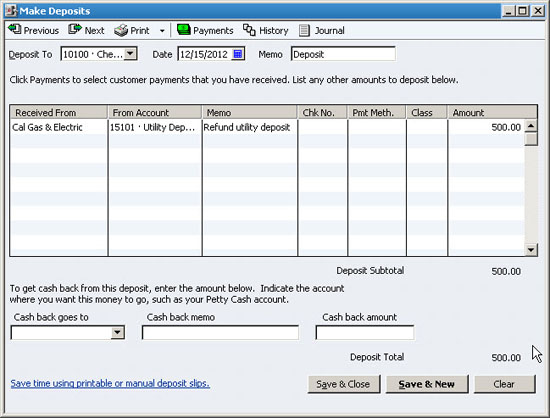
Choose Banking, and then Make Deposits. Specify the vendor, and then choose the account. In the case of deposit refunds, you should have an asset account that you'll apply the money against, as shown in Figure 2. For other types of refunds, use the expense account from which you originally paid the money.
Apply utility deposit refunds back to the deposit account on your balance sheet.
Owner Contributions
This is a situation where an owner of the company invests money into the firm. The owner does so in hopes of making a return on their investment, but does not have a specific timetable in mind for repayment of the loan. If you don't already have a Contributions from Owner account, follow these steps described previously for creating a new account, but choose Equity and name the account Contributions from Owner.
Distributions to Owner
Distributions allow an owner to take profits out of the company on a non-salary basis. Distributions can be paid through payroll or on a separate check. Your chart of accounts should already include a Distributions to Owner account, but if it doesn't, you can establish this new Equity account, which you can then use in either of these types of transactions.
Payroll: Distributions require special treatment in payroll because they're not subject to income or payroll taxes in QuickBooks. The owner settles the income tax due when filing their annual return. Before you can pay distributions through payroll you must establish a payroll item. To do so, follow these steps:
- Choose Employees, Manage Payroll Items, and then New Payroll Item.
- Choose Custom Setup, and then click Next.
- Choose Addition, and then click Next.
- Enter the word Distribution and then click Next.
- Choose the Distributions to Owner account from your chart of accounts, and then click Next.
- Choose None for the Tax Tracking type, and then click Next.
- Leave all of the taxes unselected, and then click Next.
- Choose Calculate This Item Based on Quantity and then click Next when the Calculate Based on Quantity screen appears.
- Accept the default choice of Gross Pay and then click Next.
- Leave the Default Rate and Limit fields at zero and then click Finish.
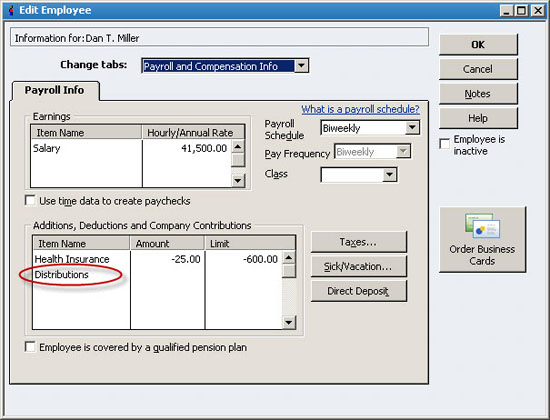
Next, select the employee in the Employee Center, and then choose Edit Employee. Choose Payroll and Compensation Info from the Change Tabs list, and then add Distributions to the Additions, Deductions, and Company Contributions list, as shown in
You can fill in the distribution amount now if you know the ongoing amount, or you can fill it in on the fly during the payroll process. Simply display the Paycheck Detail during the payroll process to access this field and enter the distribution amount.
Add Distributions to the Additions, Deductions, and Company Contributions section.
Separate check: A much simpler approach is to write a separate check to the owner. To do so, choose Banking, and then Write Checks. Choose the Distributions to Owner account and fill in the amount.
Loans to the Company
From time to time the owner may need to make a loan to the company. If the owner expects this money to be repaid, establish a Loan account on the chart of accounts and record the deposit of the loan to this new account.
Company Loans Money to Others
We want to hear from you!
Click the link below to schedule a consultation with Biz Universal.